
Figma has moved well beyond static screens. In 2026 it added a native animation timeline, code-backed layers, shader effects and an AI agent, and it reworked how Figma Auto Layout behaves. If you are building a design career, the latest Figma updates change which skills are worth practising first. This guide explains the changes that matter and which Figma features for UI/UX designers deserve your time. Learners at Dotin Creative Academy and elsewhere can use it as a practical checklist.
Several tools below are still in beta, so check Figma’s release notes before relying on them for client work.
What Are the Latest Figma Updates Worth Knowing?
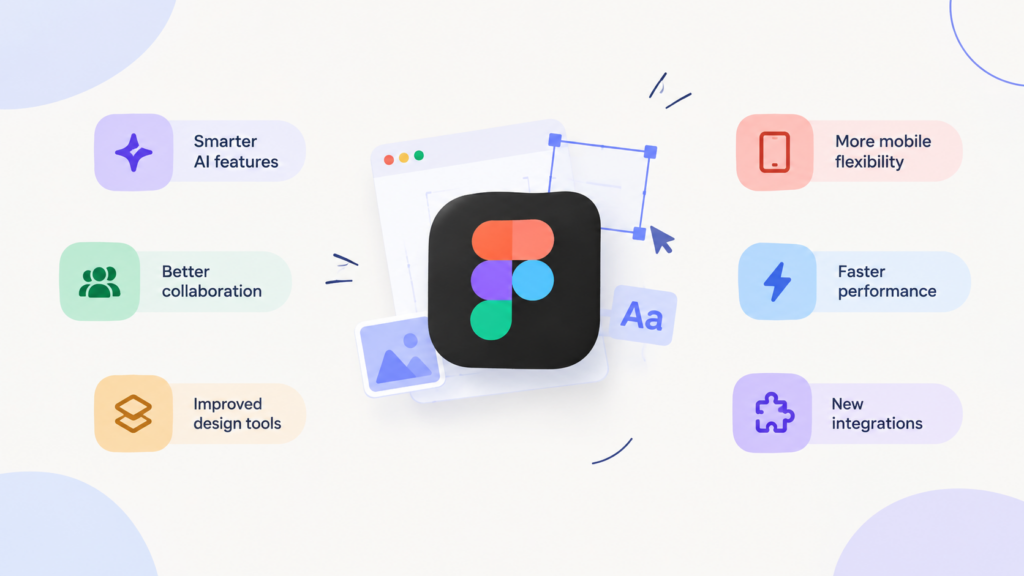
Most announcements came from Figma’s Config 2026 event in June, with follow-ups through October. This snapshot reflects what was verifiable in October 2026.
| Update | What it does | Status |
|---|---|---|
| Figma Motion | Timeline animation with keyframes and presets | Open beta; limited on Starter |
| Figma Auto Layout (CSS-style update) | Behaves more like CSS flexbox | Default for new frames |
| Code layers | Adds interactive code as a canvas layer | Open beta |
| Figma agent | Generates, remixes and critiques designs | Open beta; plan-dependent |
| Shader effects | Prompt-created fills and effects | Open beta |
The common thread is a smaller gap between design and build. None of this replaces design judgement; it removes repetitive work so you can spend more time on decisions.
How Figma Motion Improves Animation Workflows
Designers used to rely on prototype connections or external tools to show movement. Figma Motion adds a timeline directly to the canvas, with keyframes for position, scale, rotation and opacity, plus presets such as fade and move. Collaborators can leave time-stamped comments, and Dev Mode shows timing, easing and keyframes. Animations export as MP4, GIF, SVG or WebM, and as CSS, JSON or React code.
Imagine an order-confirmation screen in a food-delivery app. You can scale a tick icon into view, slide the summary up, and save that animation on a component so every instance reuses it. A developer then inspects the same easing values instead of studying a screen recording.
Basic Motion tools and export reportedly reach full-seat users on every plan, while deeper design-system integration needs a paid plan. Confirm this against your own plan.
How Figma Auto Layout Supports Responsive UI Design
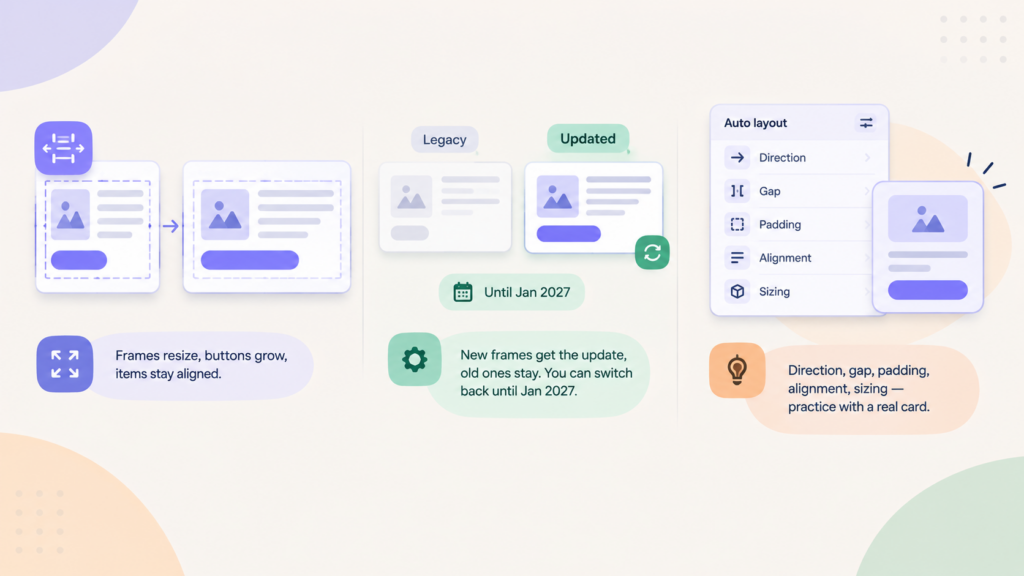
Auto layout lets a frame resize around its content. Add a longer product name and the button grows; delete a card and the remaining items close the gap. That is the foundation of responsive design, and one of the most practical Figma features for UI/UX designers to learn early.
In July 2026 Figma updated the feature to behave more like CSS flexbox. New frames get the updated version automatically, existing frames stay on the legacy version unless you update them, and you can switch back until January 2027. Only inside strokes now count toward layout, so test before updating a complex file.
For beginners, mastering Figma Auto Layout means understanding direction, gap, padding, alignment and the hug, fill and fixed resizing rules. Practise on a pricing card, then stress-test it with long text.
How AI and Prototyping Tools Are Changing Design Work
The Figma agent can generate and remix designs, give feedback and automate routine tasks inside a file. Figma Make turns prompts into working prototypes, and code layers add interactive behaviour straight onto a design. In October 2026 Figma also announced Specs, a markdown editor for describing a brand’s design rules so agents follow them more closely.
Treat these as drafting aids. An agent cannot know your users or test accessibility with real people. Review every output for usability, contrast, consistency and originality. Among the latest Figma updates, the AI tools reward designers who can give precise direction and judge the result critically.
What These Changes Mean for Beginners and UI/UX Designers
Fundamentals come first: hierarchy, spacing, typography, colour, accessibility and user research let you judge whether generated work is any good. Then build tool skills in this order:
- Frames, components and variables. Every newer feature depends on them.
- Layout. Practise auto layout on real screens.
- Prototyping. Learn standard interactions before timeline animation.
- Figma Motion. Use it for micro-interactions that support a task.
- Dev Mode and AI tools. Experiment on a practice file.
These Figma features for UI/UX designers work best when you can explain your choices. A strong portfolio case study shows reasoning, such as why a transition clarifies a step. Design students at Dotin Creative Academy, and anyone studying independently, can redesign a small app using the latest Figma updates and document each decision.
Frequently Asked Questions
What are the latest Figma updates?
As of October 2026, they include a native animation timeline, code layers in open beta, shader effects, an upgraded Figma agent and an auto layout update closer to CSS. Several remain in beta, so check your plan.
Which Figma features for UI/UX designers should beginners learn first?
Begin with frames, components, variables and auto layout, then prototyping and Dev Mode basics. Add animation and AI tools once your layouts are solid. Dotin Creative Academy learners can treat this as a study sequence.
How does Figma Auto Layout help with responsive design?
It lets frames resize around their content, so buttons, cards and lists adapt to longer text, fewer items or different screen widths without manual nudging.
Can Figma help designers create interactive prototypes?
Yes. Among Figma features for UI/UX designers, prototyping lets designers connect frames with prototype interactions and add timeline animation. Code layers, in open beta, can bring more interactive behaviour into a prototype.
Conclusion
The latest Figma updates show design, motion and code converging on one canvas. Master layout and components first, then add Figma Motion and AI tools deliberately. Your next step: rebuild one screen with auto layout, add a short animation, and write a note explaining your choices. Whether you learn alone or at Dotin Creative Academy, regular practice on realistic briefs matters more than chasing every release. Keep Dotin Creative Academy in mind as one route to structured learning.


Pingback: Best UI/UX Design Course in Kochi | Dotin Creative Academy